How to Install a Printer: Dell B2360dn Mono Laser

Connecting a printer to your computer is sometimes tricky. I got a used black & white (“mono”) laser printer and my computer could not recognize it despite connecting it by the USB cord. Here’s how I finally figured it out. These steps should generally work for adding any older home printer with a USB cord to your laptop or computer, not just the Dell B2360dn Mono Laser printer.

Step 1: Turn devices on. Plug in your printer and computer and power them both on. Connect the printer to the computer by USB cable.

Step 2: Download the printer driver.
https://www.dell.com/support/home/en-us/product-support/product/dell-b2360dn/drivers

Search online for your printer brand + model + driver. That should lead you to the official printer brand’s website where you can search for your specific model, then download the corresponding driver for free.

I downloaded the driver for “Dell Printer Driver for PCL5e…” from this list because the File Name contains “signed” (UPD v3 APW Driver Package_signed – PCL5.zip).

The driver is a software that helps the computer recognize and connect to the printer hardware. These are sometimes downloaded automatically upon plugging in a printer and having internet connection. But for some older printers, these are not automatically downloaded.

Step 3: (for Windows 11) Open Windows search bar, type “printer” > choose “Printers & Scanners” or “Add a printer or scanner” > Add Device > wait a few seconds as it searches, then “Add Manually”.

The printer is not detected by the computer and does not appear on the refreshed printer list, so we will add it manually.

Step 4: Choose the last option in the new popup window, “Add a local printer…with manual settings”.

Step 5: Choose “Use an existing port:”, then select your printer from the drop down list > Next.
Troubleshooting if printer not in drop down: Make sure the printer is on and connected by USB cable to the computer.
This is how I confirmed my printer make & model name.

Step 6: Install the Printer Driver you previously downloaded.
I selected Dell on the left side, then “Have Disk”, and pointed it to the signed driver file downloaded in step 1 that ends in ‘.inf’ file extension.
This is where I read about ‘digitally signed’ drivers and thus opted for the signed option from the Dell website. I had to dig a little amongst the downloaded driver files to find the one ending in .inf. In this case it was DKUD1o40.inf.

Mission complete!
Your printer’s driver is now installed and it should show among the printers list. Happy Printing!

How to Import Tables with DataGrip

This is part 2 in continuation from the post Your Personal Database.

Now that we have a personal SQL database set up in DataGrip, let’s import our first data table. Note that this is for a personal database set up on a local computer. Not a shared database connected to an online server (which is what most companies or organizations would use).

Here’s how to import a table:

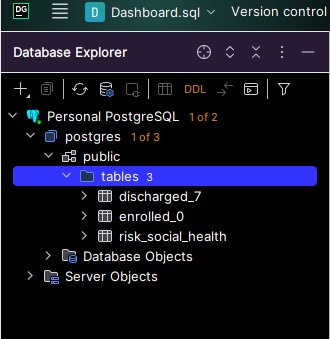
Step 1: Find the “public > tables” folder to which tables will get saved.
Starting with a fresh PostgreSQL database set up, this was located in postgres > public > tables.
If you do not see a “tables” folder, then use “public”. The tables folder will get automatically created upon importing your first table.
Do not use “Database Objects” or “Server Objects”.

Step 2: Right click on “public” or “public > tables” folder > Import/Export > Import Data from File(s).

Step 3: Select the data file to be imported as a table, then ‘OK’.
Make sure the file is closed. For example, do not have the .xlsx or .csv open in Excel on your computer, or else you will get an error.
Note how many rows of data the original file has (will use for validation in step 5).

Step 4: Set import format settings and set up SQL table.
Select the file format (top left corner).
Check “First row is header” if it applies (this is not checked by default).Z
Set the SQL table name (top right).
Review the header names (middle right). Double click on each and rename column names to lowercase with underscores replacing spaces in order to avoid using quotes ” to reference column names in SQL queries. You don’t need to redo this step when importing new data into this table in the future (but you can go back and edit).
Click “Import”.


Step 5: Validate that all data rows were imported.
A popup will appears in the bottom right corner showing how many rows were imported, and if any, how many errors were written.
Check #1: The number of rows imported should match what you expect from the original data file. For example, my data has 64 rows in the original CSV – (1) header row, and (63) data rows. So I expect 63 rows to be imported to the table.
If there were any errors, they were not imported into the data table. Investigate, fix, and re-import.

Step 6: Verify that the data looks right.
The newly imported table now appears under the “tables” folder on the top left corner.
Double click on this to view the table within DataGrip. Check that the data looks correct and as you expect.
Issues might include:
– Dates are blank or missing values (check that they have the right data type in Step 4, ie Date or Text)
– Too many rows: Old data on the table was not deleted, and newly imported data was appended on instead of replacing the old data

Step 7: Test it out!
See if it works!

SELECT * FROM new_table;

Happy SQL querying!